SecureKi OTP use Time-based One-Time Passwords (TOTP) which require precise time synchronization between the server and the authentication system.
Steps
1. Access the APPM server.
2. Check current time status
timedatectl status
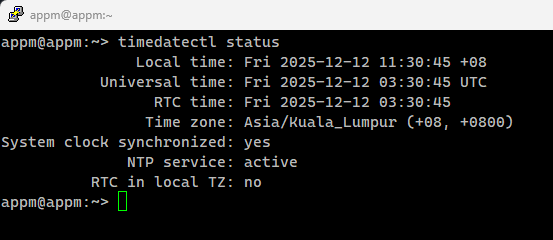
Expected Output:
- System clock synchronized: yes
- NTP service: active
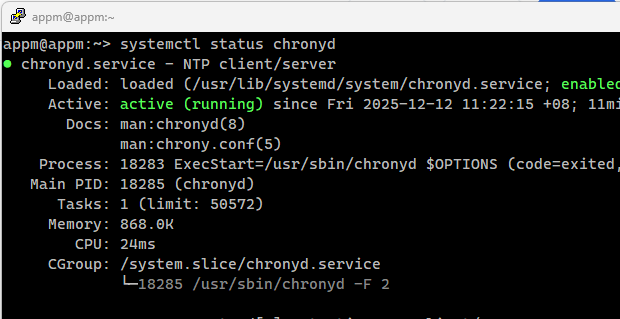
3. Verify NTP Service Status
systemctl status chronyd
4. Enable and Start NTP Synchronization
# Enable NTP synchronization
sudo timedatectl set-ntp true

# Enable chrony:
sudo systemctl enable chronyd
sudo systemctl start chronyd
5. Configure NTP Servers
Using chrony:
# Edit chrony configuration
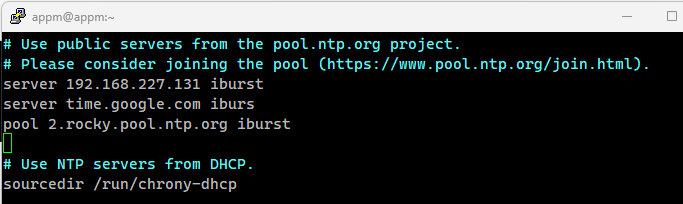
sudo vi /etc/chrony.conf
Add or modify NTP servers:
# Put hosted NTP server or Public NTP servers (choose one or multiple)
server 192.168.227.131 iburst
server time.google.com iburst
pool 2.rocky.pool.ntp.org iburst
Save and restart:
sudo systemctl restart chronyd
6. Verify Network Connectivity to NTP Servers
# Test connectivity to NTP servers
ping -c 192.168.227.131
ping -c 4 time.google.com

# Test NTP port connectivity
nc -zuv 192.168.227.131 123
nc -zuv time.google.com 123

# For chrony, check sources
chronyc sources -v
7. Monitor Time Synchronization Progress
# Watch time synchronization status
watch -n 1 "timedatectl status"

# Alternative monitoring commands
chronyc tracking    # For chrony
ntpq -p             # For ntp
8. Timezone Configuration
# Check current timezone
timedatectl | grep "Time zone"

# List available timezones
timedatectl list-timezones

# Set correct timezone (example for Asia/Kuala_Lumpur)
sudo timedatectl set-timezone Asia/Kuala_Lumpur
Was this article helpful?
That’s Great!
Thank you for your feedback
Sorry! We couldn't be helpful
Thank you for your feedback
Feedback sent
We appreciate your effort and will try to fix the article